
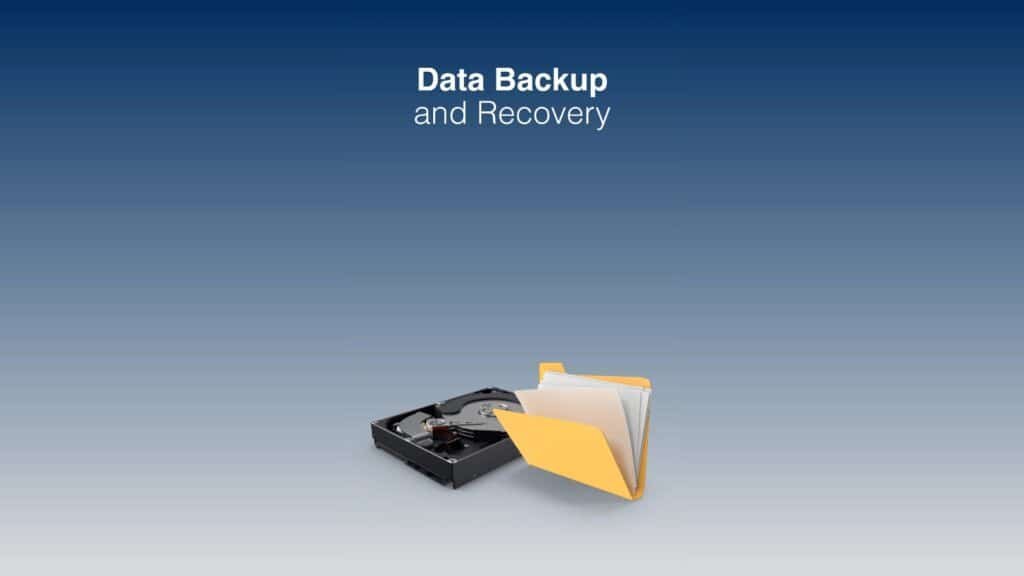
Losing important files, whether family photos, coursework or business records, is stressful. The good news is that deleted or “lost” files can often be recovered, especially if you act quickly and avoid a few common mistakes. Here’s what to do.
First, stop using the device
When a file is deleted, the space it used is only marked as free. The data usually stays there until something new is saved on top of it. Every download, update or new file makes that more likely, so stop using the computer, phone or memory card as soon as you notice files are missing. Don’t install recovery software onto the same drive you’re trying to recover.
Check the obvious places first
- The Recycle Bin. Right-click a file and choose Restore to put it back where it was.
- OneDrive or other cloud storage. OneDrive has its own recycle bin online, which keeps deleted files for a limited time.
- Previous versions. If File History or restore points are turned on, right-click the folder, choose Properties, then Previous Versions.
- Unsaved documents. In Word, go to File, Info, Manage Document, then Recover Unsaved Documents.
- Other copies. Check email attachments, your phone, USB sticks and any external drives.
If the drive isn’t showing up or is making noises
If your computer won’t start, a drive has disappeared, or you can hear clicking, grinding or buzzing, switch it off and leave it off. These are signs of a physical fault, and every attempt to power it up can make recovery harder. Don’t run recovery software or open the drive yourself. Drives with physical damage need specialist handling.
Photos on phones and memory cards
For photos deleted from a phone, check the Recently Deleted album in your photos or gallery app, which usually keeps pictures for around 30 days. For a camera memory card, stop using it straight away and keep it somewhere safe. If a card shows errors or asks to be formatted, say no. Formatting makes recovery harder, and the photos can often still be saved.
If the lost files belong to your business, check shared drives and any cloud backup you use, such as Microsoft 365, before assuming they’re gone.
A word on recovery software
For files deleted from a working drive, recovery software can sometimes help. Microsoft offers a free command-line tool called Windows File Recovery. If you try any recovery program, install it on a different drive and save the recovered files somewhere else, never back onto the drive you’re recovering from.
Situations we can often help with
- Files deleted by mistake or a drive formatted by accident
- A laptop or PC that won’t start, where the files are usually still safe on the drive
- External hard drives and USB sticks that have stopped working
- Camera and phone memory cards
- Moving everything safely from an old computer to a new one
Make sure it doesn’t happen again
The best protection is a good backup. A popular rule is to keep three copies of important files, on two different types of storage, with one kept away from home, such as in the cloud. Turn on OneDrive or File History, and check every so often that your backups actually work.
Our data recovery service in Luton covers laptops, PCs, external drives and memory cards. If your laptop won’t switch on at all, read My Laptop Won’t Turn On first.
In short: stop using the device, check the Recycle Bin, cloud storage and previous versions, and never save recovery software or recovered files onto the same drive. If the drive is clicking or isn’t detected, switch it off and get professional help.
Need a hand? PC Masters offers a free diagnosis over the phone, a £59 same-day call-out across Luton, Dunstable, Houghton Regis, Harpenden and Leighton Buzzard, No Fix, No Fee, and a warranty from 1 month up to 36 months. Book online or call 0800 145 5521, Monday to Saturday, 9am to 8pm.